In short
- Updates fix security holes that criminals already know about, so switch on automatic updates and let them finish.
- Computers, phones, tablets, your router, your website and your card machine all need updating.
- A device that no longer gets security updates should be replaced, or kept well away from email, banking and customer details.
Why updates matter
Every piece of software has flaws. When one is found, the maker fixes it in an update, and the details often become public. From then on, criminals know exactly what to look for, and automated tools scan the internet for devices that have not been updated. An update is often the difference between a known, fixed problem and an open door.
Cyber Essentials, the government-backed security standard, expects important security updates to be installed within 14 days of release. That is a good target for any business.
What needs updating
- Computers: Windows or macOS, plus your browser and the programs you use.
- Phones and tablets, including the apps on them.
- Your router, which our Wi-Fi and router guide covers.
- Your website, especially WordPress and its plugins, if you look after it yourself.
- Everything else that connects: card machines, printers, cameras, smart TVs and speakers.
Make updates automatic
Switch on automatic updates everywhere you can, then let them finish. Menus change from time to time, but in most cases:
- Windows: Settings, then Windows Update. Restart when it asks, ideally at the end of the day.
- Mac: System Settings, then General, then Software Update, and switch on automatic updates.
- iPhone and iPad: Settings, then General, then Software Update, then Automatic Updates.
- Android: Settings, then System or Security (it varies by maker), then software or security updates.
- Apps: switch on automatic app updates in the App Store or Google Play.
Do not ignore the “restart to finish updating” message for days on end. Many updates do nothing until the device restarts.
How to tell when a device has stopped getting updates
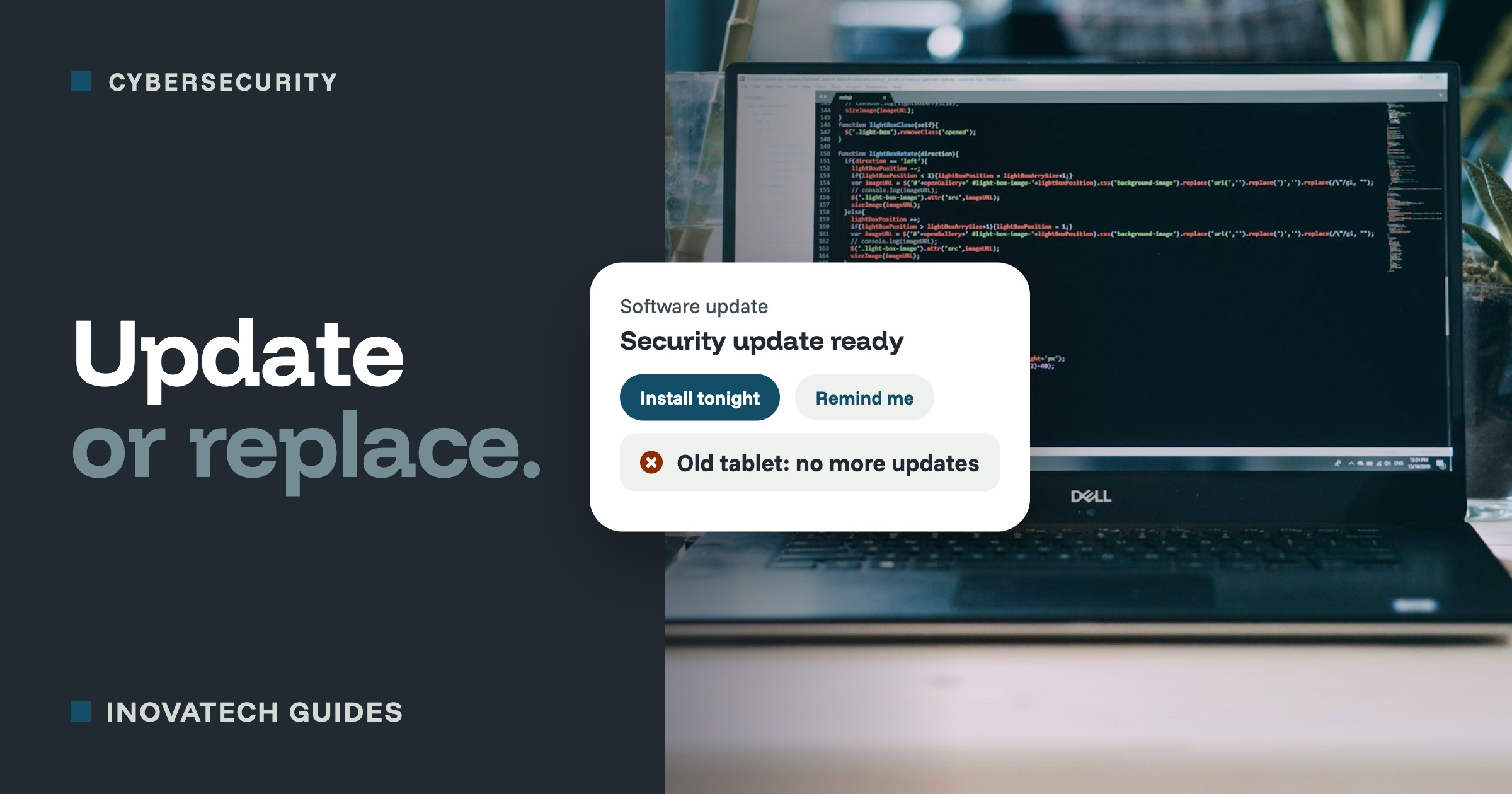
Every device eventually reaches the end of its support, and after that its security holes are never fixed. It still works, which is why so many old devices are still in use.
- Windows 10 stopped getting normal security updates in October 2025. Microsoft offers Extended Security Updates for a limited time. If you still use Windows 10, check whether you are signed up for them, and plan to move to Windows 11 or a new computer.
- Android phones and tablets:look in Settings, under About phone or Security, for the “security update” date. If it is many months old and no update is offered, the device is probably no longer supported.
- iPhones, iPads and Macs: if Software Update says you are up to date but you are several versions behind the latest, or apps start saying they need a newer version, your device has likely reached the end of its updates.
- Anything else:search the maker’s website for the model and “end of support”. Since April 2024, new connected products sold in the UK have to say how long they will get security updates, which helps when you buy.
What to do with an old device
- Replace it if it is used for email, banking, payments, bookings or customer details. These are the jobs that matter most if something goes wrong.
- If you must keep it for a while, use it only for something harmless, keep it off your business network, and plan its replacement.
- When you retire it, sign out of your accounts (and of Find My or Find Hub), remove the SIM and memory card, and reset it to factory settings before you sell, recycle or give it away.
Your 15-minute check
- List every computer, phone and tablet the business uses (5 minutes).
- Check automatic updates are on for each, and install anything waiting (5 minutes).
- Note any device that no longer gets updates, and plan when to replace it (5 minutes).
Not sure what you have got? Our cybersecurity support includes checking your devices, switching on automatic updates, and a plain list of what needs replacing and when. Try our 10-minute security check for your website too.