In short
- Two-step verification adds a second check, usually your phone, after your password.
- Start with your email, then banking, social media, booking sites and your website.
- Save your backup codes and keep your recovery details up to date, so you never lock yourself out.
What it is, and why it works
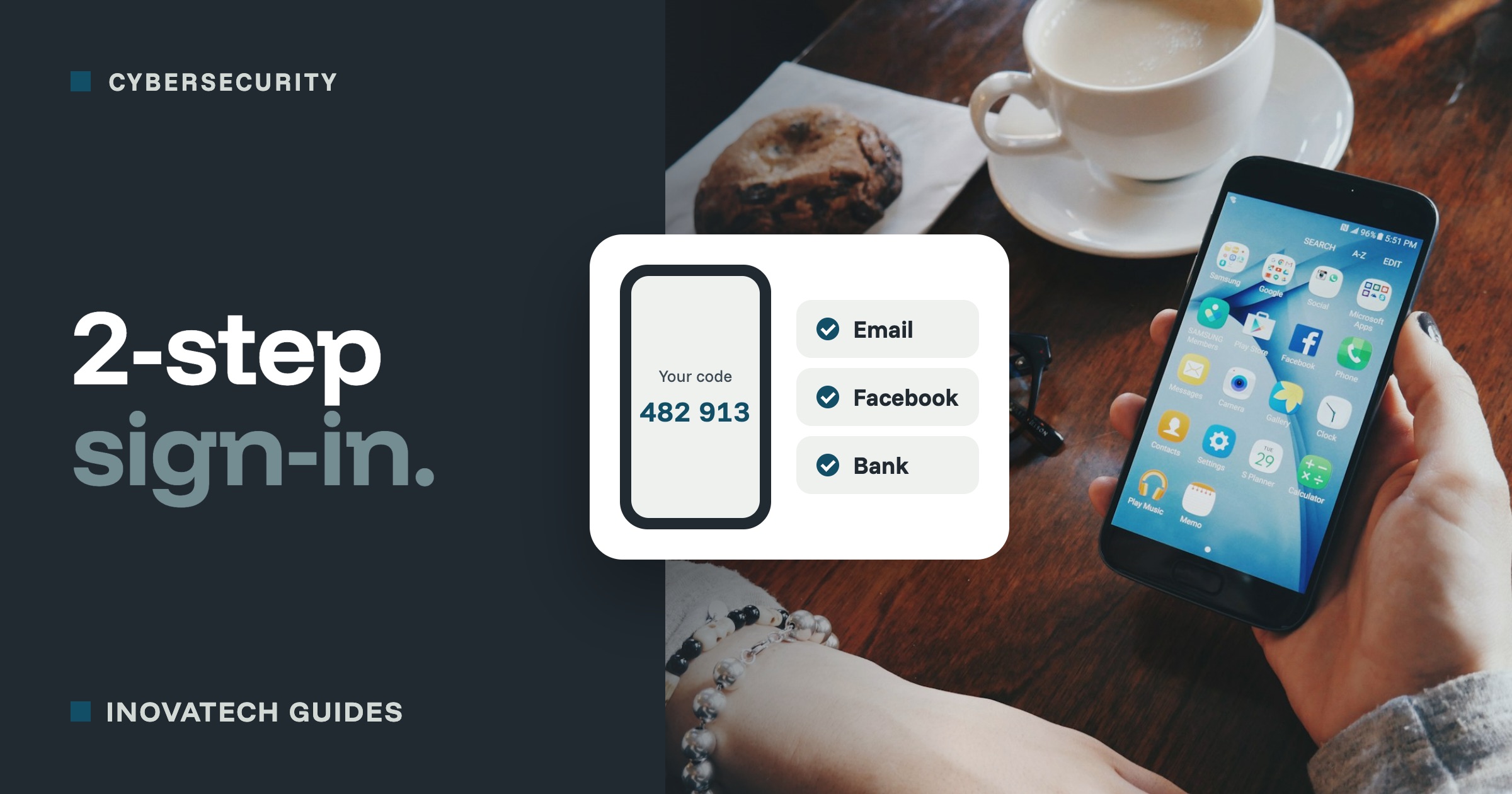
Normally, anyone with your password can sign in as you. With two-step verification (also called two-factor authentication, 2FA or 2SV), signing in also needs something only you have, usually your phone. Passwords get stolen all the time, through data leaks at other websites and fake login pages. With two-step verification, a stolen password on its own is not enough.
The UK’s National Cyber Security Centre recommends it for every important account. For a small business, it is the difference between a scary email saying someone tried to sign in, and losing your email, your Facebook page or your booking account.
Which accounts first
Do them in this order. The first one matters most.
- Your email. It is the key to everything else, because password resets for all your other accounts arrive there. Whoever controls your email can take over the rest.
- Banking and payments, including PayPal, Stripe, SumUp or your card machine account. Most banks already insist on it.
- Facebook and Instagram. Hijacked business pages are used to scam your followers, and getting a page back can take weeks.
- Booking sites and marketplaces: Booking.com, Airbnb, Etsy, eBay, Amazon and similar.
- Your website, web address and hosting logins, so nobody can change or take down your site.
- Accounting and tax, such as Xero, QuickBooks or FreeAgent. HMRC’s online services already use it.
- Your password manager, if you use one, because it holds everything else.
Which kind to choose
Most accounts offer several options. From strongest to weakest:
- Passkeys.You sign in with your phone’s fingerprint, face or PIN instead of typing a password. They cannot be phished on a fake website. Google, Microsoft, Apple and a growing number of other services offer them. If you see the option, take it.
- An authenticator app, such as Google Authenticator or Microsoft Authenticator. It shows a new six-digit code every 30 seconds, and works without signal.
- A prompt on your phoneasking “Is this you trying to sign in?”. Quick and easy, as long as you only ever tap Yes when you are signing in yourself, right then.
- A code by text message. Much better than nothing, but scammers can sometimes move your number to their own SIM card. Use it if it is the only option, or as a backup.
How to switch it on
In almost every service, look in the settings for Security(or “Login and security”), then for “Two-step verification”, “Two-factor authentication” or “2FA”. The service then walks you through it. For the most common ones:
- Google and Gmail: go to myaccount.google.com, choose Security, then 2-Step Verification.
- Microsoft, Outlook and Microsoft 365: go to account.microsoft.com, choose Security, then the two-step verification setting.
- Facebook and Instagram: open Accounts Centre, choose Password and security, then Two-factor authentication.
- Apple: it is usually on already. Check under Settings, your name, then Sign-In & Security.
- Business email from your web host: look in the host’s control panel or account security settings, or ask whoever set up your email.
Menus change from time to time. The National Cyber Security Centre keeps step-by-step instructions for popular services: search for “NCSC 2-step verification”.
Do not lock yourself out
This part matters as much as switching it on. We have seen a business Facebook account that could only be confirmed by a phone number the owner no longer had. Updating recovery details takes a minute. Sorting it out afterwards can take weeks.
- Save your backup codes. Most services give you a set of one-off codes. Print them, or store them in a password manager. Not in your email.
- Add a second way in, such as a second phone, a security key, or a backup number.
- Keep your recovery email and phone number up to date, and check them whenever you change number.
- Moving to a new phone? Move your authenticator app across before you wipe or hand in the old one.
- Do not depend on one person. Give your Facebook page and other business accounts a second admin you trust, and give staff their own logins rather than sharing one.
Two scams to watch for
- Someone asks you for a code.No genuine company, bank or friend will ever ask you to read out or forward a code you have just been sent. A message saying “I sent you a code by mistake, can you send it back?” is a common way of stealing WhatsApp and social media accounts.
- A sign-in prompt you did not expect.If your phone asks “Is this you?” and you are not signing in, tap No, then change that account’s password. Someone has your password.
Your 20-minute plan
- Install an authenticator app on your phone (5 minutes).
- Switch on two-step verification for your email, and save the backup codes (5 minutes).
- Do the same for Facebook or Instagram, and add a second admin to your business page (5 minutes).
- Do your main booking or payment account (5 minutes).
Then work through the rest of the list above over the next week.
Want a hand setting it up? Our cybersecurity support includes switching on two-step verification across your accounts, checking your recovery details, and a short session for you and your team on spotting scams. Read more in our 10-minute security check.