In short
- Your router guards every device in the business, so change its admin password and keep its software up to date.
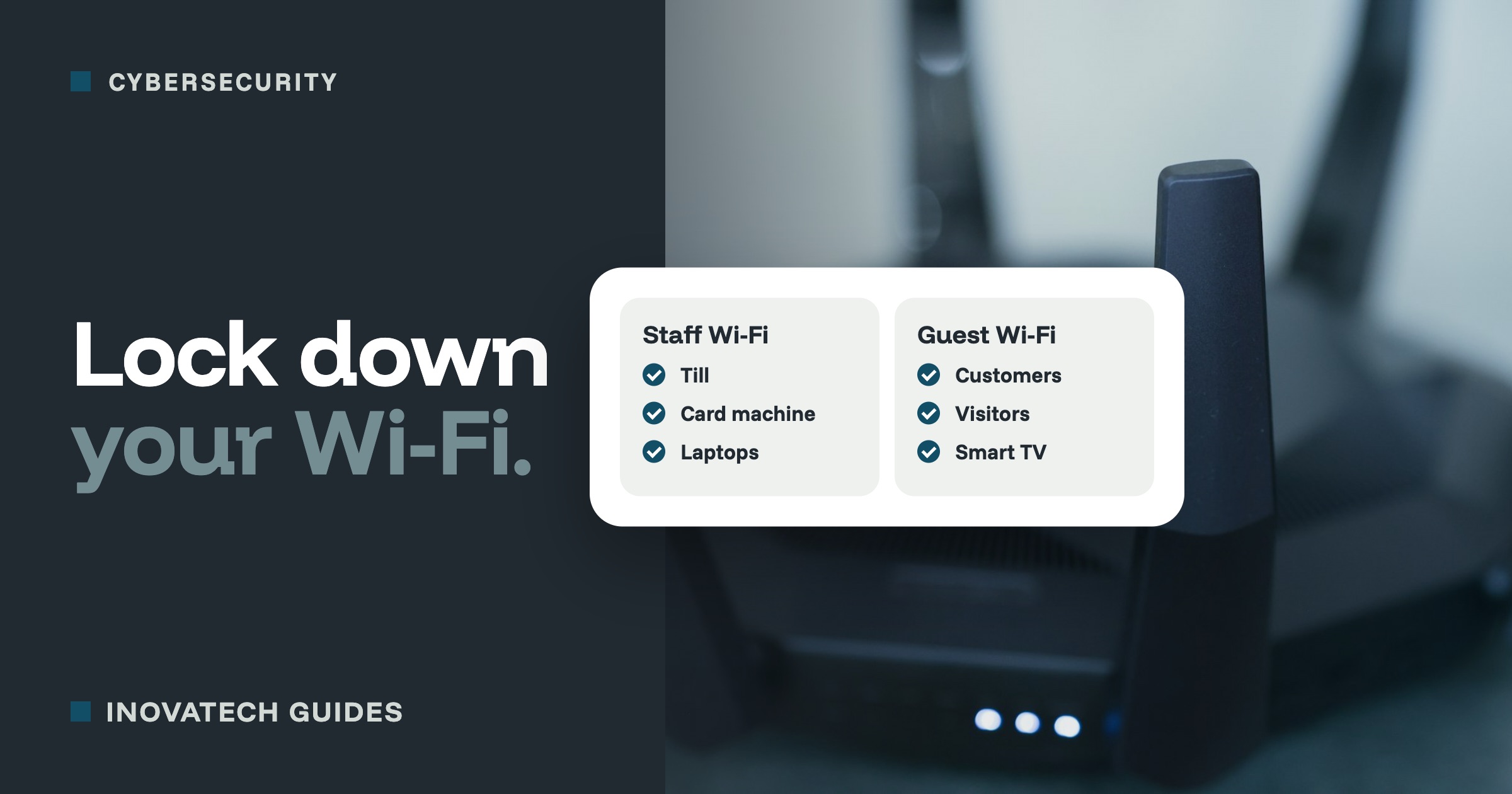
- Give customers and visitors a separate guest network, never the one your till, card machine or laptops use.
- Use WPA2 or WPA3 with a long Wi-Fi password, and replace a router that no longer gets security updates.
Why the router matters
Everything that connects to the internet in your business goes through the router, usually the box your broadband provider sent you. If someone can get onto your Wi-Fi, or into the router’s settings, they can see what else is connected, try to get into it, and in the worst case send your traffic somewhere else.
Most of the risk comes from settings left as they arrived, a Wi-Fi password shared with half the town, and routers that stopped getting security updates years ago. All three are easy to fix.
1. Find your way into the router
Look at the sticker on the router. It usually shows the Wi-Fi name and password, and how to reach the settings: an address to type into your browser, or the name of an app. Many broadband providers (BT, Sky, Virgin Media, Vodafone and others) now let you manage the router from their own app, which is the easiest way.
If your provider manages the router for you and you cannot change the settings, the steps below are still the right questions to ask them.
2. Change the admin password
The admin password protects the router’s settings. It is not the same as the Wi-Fi password, and it matters more: whoever has it can change everything else.
- If it is still the one printed on the sticker, or something like “admin”, change it now.
- Use something long and unique. Three random words together is a good way to make one you can remember.
- Keep it in a password manager, or written down somewhere safe away from the router.
Since April 2024, UK law has stopped new connected products, routers included, being sold with the same easy-to-guess default password on every device. Older routers may still have one, so it is worth checking.
3. Check the Wi-Fi security setting
- Use WPA3 or WPA2.Look for “Security” or “Encryption” in the Wi-Fi settings. WPA3 is the newest. “WPA2/WPA3” is fine too, so older devices can still connect.
- Never WEP, and never an open network for the business. Both are easy to break into or listen in on.
- A long Wi-Fi password. The longer, the better. If it has been shared widely over the years, change it and reconnect your own devices.
4. Give customers their own network
If customers, guests or visitors use your Wi-Fi, give them a guest network and keep the main one for the business. Most routers have a guest Wi-Fi setting, often with a switch that stops guests seeing each other or your devices.
- The business network is for your till, card machine, laptops, printer and anything holding business or customer information.
- The guest network is for customers, visitors, and gadgets that do not need to reach your business devices, such as a smart TV or speaker.
- Change the guest password now and then, for example every few months, or after a busy season. For holiday lets, changing it between guests is even better if your router or provider makes it easy.
The business password should only be known by you and the staff who need it. When someone leaves, change it.
5. Keep it up to date, and know when to replace it
Routers have software (sometimes called firmware) that needs security updates like a phone or laptop. Routers from broadband providers usually update themselves. If you bought your own, look in the settings for automatic updates and switch them on, or check the maker’s website.
When a router no longer gets updates, its weaknesses stay open for good. If yours is old, ask your provider whether a newer one is available, or check the maker’s website to see whether it is still supported. New products now have to say how long they will get security updates, which helps when you buy.
6. Switch off what you do not use
- Remote management (managing the router from outside the building over the internet). Unless you or your IT support use it, switch it off. Provider apps work differently and are fine to keep.
- WPS, the button or PIN that lets devices join without the password. It is handy but has a history of weaknesses. If you never use it, turn it off.
7. Look at what is connected
Most routers and provider apps show a list of connected devices. Have a look now and then. If you see something you do not recognise on the business network, change the Wi-Fi password and reconnect your own devices. Give your own devices clear names as you go, so the list stays easy to read.
Your 20-minute plan
- Open the router’s settings or your provider’s app (5 minutes).
- Change the admin password, and save it somewhere safe (5 minutes).
- Check the security is WPA2 or WPA3, and switch on a guest network for customers (5 minutes).
- Switch on automatic updates and check the list of connected devices (5 minutes).
Want us to check it for you? Our cybersecurity support includes looking over your router and Wi-Fi, setting up a guest network, and making sure your till and card machine sit on the right side of it. For the rest of your setup, try our 10-minute security check.