In short
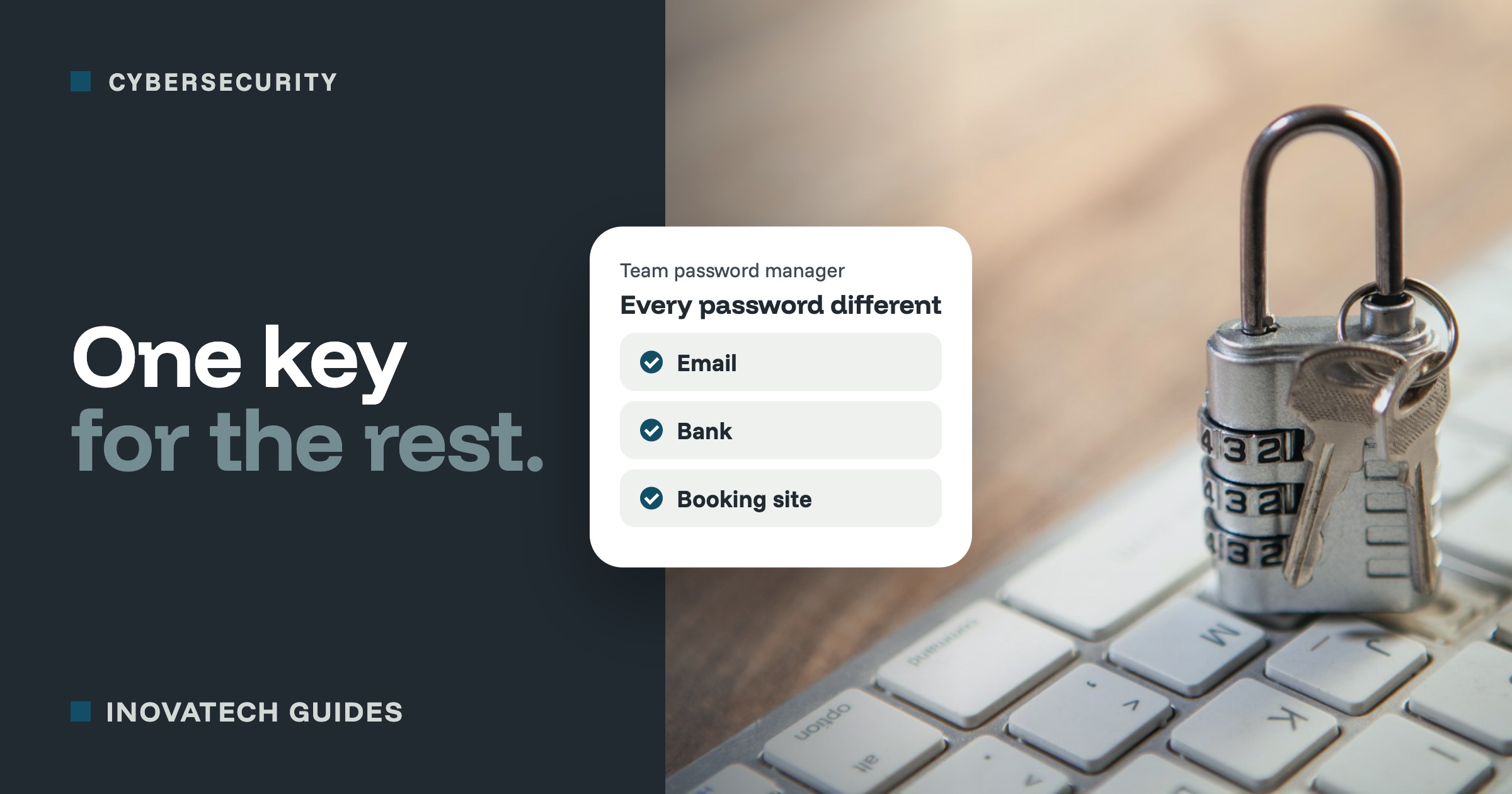
- A password manager remembers a different strong password for every account, so you only have to remember one.
- Team versions let staff use shared logins safely, and let you take access away in seconds when someone leaves.
- Protect the manager itself with a long main password and two-step verification, and use passkeys where offered.
Why reused passwords are the real problem
Websites get hacked and their password lists leak all the time. Criminals then try those email and password pairs on other sites: email, banking, Facebook, booking platforms. If you use the same password in several places, one leak somewhere you have forgotten about can open all of them.
The fix is a different, strong password for every account. Nobody can remember dozens of those, which is exactly what a password manager is for.
What a password manager does
- Remembers every password for you, so each account can have its own long, random one. You remember just one main password.
- Fills them in for you on your computer and phone. The UK’s National Cyber Security Centre points out this also helps against fake login pages, because the manager only fills in on the real website.
- Creates strong passwords when you sign up for something new.
- Warns you about weak, reused or leaked passwords, in most cases.
Is the one in my browser good enough?
If you work on your own, the password saving built into your browser or phone (Google Password Manager, Apple Passwords, Microsoft Edge) is a big step up from reusing passwords. The NCSC considers it safe on your own devices, as long as they are kept updated and locked. Never save passwords in the browser on a shared or public computer.
Once there are two or more of you, a dedicated password manager with team features usually works better. Well-known ones include 1Password, Bitwarden, Keeper and Dashlane. Pick the one you find easiest to use: the best password manager is the one your team will actually use.
What to look for in a team password manager
- Shared folders (often called vaults), so staff can use the booking site login without you reading it out over the phone.
- Separate accounts for each person, so you can see who has access to what.
- Easy removal, so when someone leaves you can take their access away in seconds.
- Apps for every device you use: Windows, Mac, iPhone and Android.
- Two-step verification on the manager itself, and a way to recover the account if the owner is unavailable.
Setting it up: an afternoon, once
- Choose one and create the owner account. Make the main password long and memorable: three random words together is a good way to do it. Switch on two-step verification and keep the recovery details somewhere safe, such as a printed copy in a locked drawer.
- Make a few shared foldersthat match how you work, for example “Social media”, “Suppliers” and “Bookings”. Keep anything only you should see in your own private folder.
- Invite your staff and give each person only the folders they need.
- Move your passwords in. Start with your email, then banking, then everything else. As you go, change any password that is weak or used in more than one place.
- Get rid of the old list: delete the spreadsheet, and shred the notebook once everything is in.
Passkeys: even better where you can
More and more services let you sign in with a passkey instead of a password: you confirm with your phone’s fingerprint, face or PIN. Passkeys cannot be phished, and the NCSC now recommends them as your first choice wherever they are offered. Most password managers can store passkeys too.
Two habits that make it work
- Switch on two-step verification as well, especially for email. A password manager and two-step verification together stop most account takeovers.
- When someone leaves, remove them from the password manager and change the shared passwords they used. Our guide to removing ex-staff from your accounts has the full checklist.
Want a hand moving over? Our cybersecurity support includes password and two-step verification guidance: choosing a password manager, setting it up for your team, and moving your most important accounts across.