In short
- Back up everything the business needs to run: documents, accounts, customer details, emails, photos and your website.
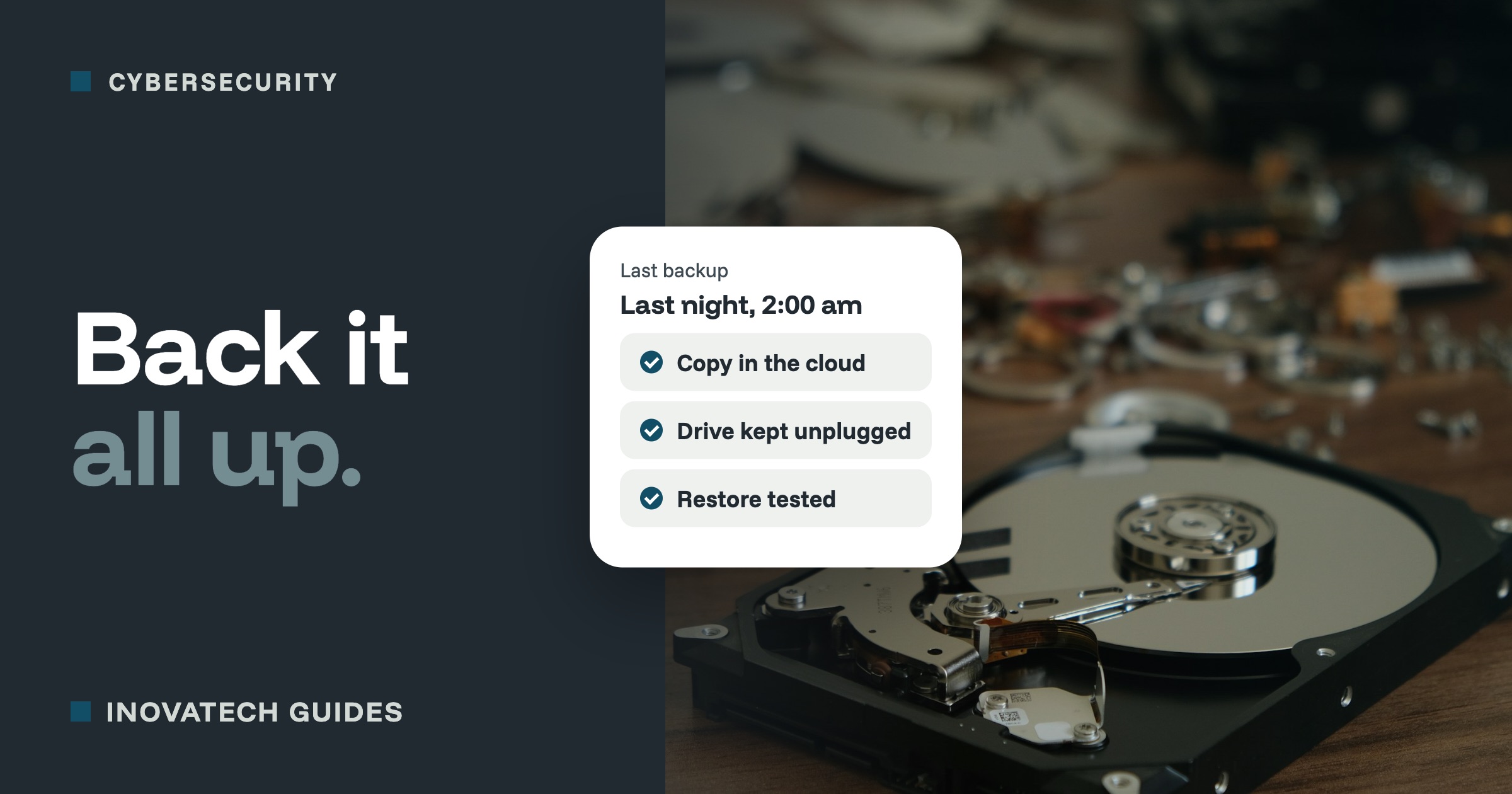
- Keep at least two backups in different places, including one that ransomware on your computer cannot reach.
- Make it automatic, then test a restore every few months: a backup you have never restored from is only a hope.
What can go wrong
The UK’s National Cyber Security Centre says every business, whatever its size, should keep regular backups of its important data. The usual ways businesses lose data are not dramatic:
- A laptop or phone is lost, stolen or dropped.
- A hard drive fails, often with no warning.
- Someone deletes the wrong folder, or saves over the wrong file.
- Ransomware locks every file on the computer and demands payment.
- You are locked out of an online account and cannot get back in.
What to back up
Make a list of everything the business needs to keep running. For most small businesses, that is:
- Documents, spreadsheets, quotes and templates.
- Your accounts, invoices and receipts (and anything you must keep for HMRC).
- Customer and booking details.
- Emails and contacts.
- Photos: of your work, your products and your premises.
- Your website, if you look after it yourself.
Then ask: how long could the business carry on without each of these? The answer tells you what to protect first.
Syncing is not the same as a backup
OneDrive, Google Drive, iCloud and Dropbox keep your files in step across your devices. That is useful, but if a file is deleted or scrambled on one device, the change can copy everywhere. Most of these services keep deleted files and older versions for a while, which can save you. Check how long your plan keeps them, and do not treat syncing as your only copy.
The same goes for email and business accounts such as Microsoft 365 or Google Workspace. The provider keeps the service running, but getting back something you deleted months ago is a different matter. If losing your email would hurt, look at a backup service made for your email provider.
Where to keep your backups
A simple rule of thumb many IT people use is 3-2-1:
- Three copies of anything important: the original and two backups.
- Two different places or kinds of storage, for example an online backup service and an external drive.
- One copy away from the premises, so a fire, flood or burglary cannot take everything.
If you use an external drive, do not leave it plugged in all the time. Ransomware attacks whatever it can reach, and a drive that is always connected is just another drive to lock. Plug it in, let the backup run, then unplug it and keep it somewhere safe. If it holds customer details, use one that is encrypted (password protected), in case it is lost.
For an online backup, protect the account with a strong password and two-step verification. Otherwise anyone who gets into it gets everything.
Make it automatic
Backups that depend on remembering do not happen. Set them up once so they run by themselves:
- On a Mac: Time Machine backs up to an external drive automatically.
- On Windows: the Windows Backup app (or File History) can back up to OneDrive or an external drive.
- Online backup services run quietly in the background and keep older versions of your files.
- Your website: ask your web host whether they back it up, how often, how long they keep it, and whether you can download a copy of your own.
The step most businesses skip: test it
A backup you have never restored from is only a hope. Every few months, pick a file and get it back from your backup. Once a year, try something bigger, like a whole folder. Check you know how to do it, how long it takes, and that the backup really holds what you think it does.
Put one person in charge, with a reminder in the calendar. In a small business, “everyone” usually means no one.
If ransomware strikes
Unplug the affected computer from the network, do not connect your backup drive to it, and get help. With a good backup you can wipe the computer and put your files back, rather than face paying criminals who may never unlock anything. Report it to Report Fraud (the police’s national fraud and cybercrime reporting service) online or on 0300 123 2040, or to Police Scotland on 101.
Your 30-minute plan
- List what the business could not do without (10 minutes).
- Switch on automatic backups to an online service or an external drive (10 minutes).
- Restore one file from the backup to prove it works (5 minutes).
- Put a reminder in your calendar to test it again in three months (5 minutes).
Want it set up properly? Our cybersecurity support includes setting up automatic backups for your computers, email and website, and showing you how to get your files back. Read more in our 10-minute security check.